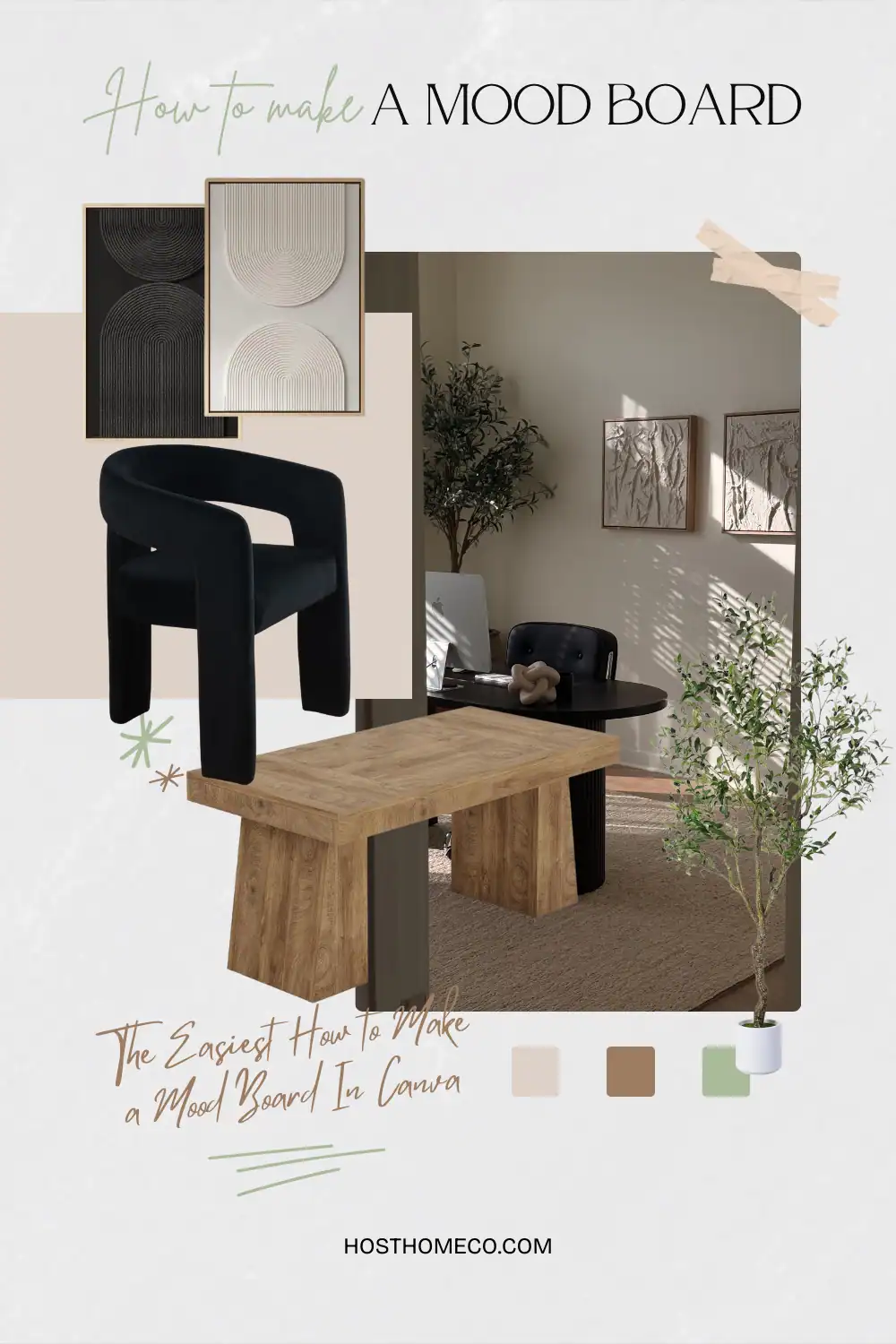
The Easiest How to Make a Mood Board In Canva
The secret to finally seeing your ideas come to life? Learning how to make a mood board, and Canva makes it almost too easy.
Heads up! This post contains some affiliate links. If you shop through them, at no extra cost to you I might earn a little something—like a virtual high-five! I only share products I genuinely believe in and think you’ll love too.

There’s something magical about seeing all your ideas in one place. You might think you know exactly how you want your living room to look, or what vibe you’re going for in your next project, but until you see it pulled together visually, it’s just floating around in your head. That’s where learning how to make a mood board comes in.
Mood boards are like your creative blueprint. They give you a chance to test different styles, vibes, and themes before you commit to spending hundreds. But thanks to Canva, it’s easier than ever to design a mood board without complicated software like Photoshop. You can do it for free, right from your laptop or even your phone.
So if you’re planning a home makeover, building your dream wardrobe, or just mapping out how you want your life to feel, let’s walk through exactly how to create a mood board in Canva together.
This post is all about how to make a mood board.
Why Make a Mood Board Anyway?
Think of a mood board as your safety net. Before you splurge on a velvet couch that doesn’t actually match your rug, oops, you can test how everything looks together. Mood boards help you:
- Save money: Spot clashing colors and mismatched styles before you buy.
- Stay focused: A mood board becomes your visual guide so you don’t get distracted by random Pinterest trends.
- Experiment risk free: You can test out bold choices or new aesthetics without the commitment.
- Visualize your vision: It’s one thing to imagine cozy minimalist chic and another to see it all laid out in front of you.
Honestly, once you get the hang of how to make a mood board, you’ll wonder how you ever decorated or designed without one.
Why Use Canva?
Okay, let’s talk tools. You don’t need Photoshop, Illustrator, or some complicated software with a steep learning curve. Canva is the easiest option out there! Beginner friendly, free with optional paid features. Only like $15 bucks, and loaded with templates.
If you’ve somehow never heard of Canva, here’s the rundown: it’s an online design platform that lets you drag, drop, and create professional looking graphics in minutes. Think of it like having a design studio at your fingertips, without the frustration.
And when it comes to making a Canva mood board, you’ve got everything you need:
- A blank canvas in any size you want
- Easy drag and drop tools
- Free stock photos, videos, and elements to use
- Background remover (with the paid plan)
- Pre-made templates if you don’t want to start from scratch
It’s basically the dream tool if you want to quickly design a mood board that looks polished and stylish.
I basically use it to create almost every image you see on this website, seriously!
Step 1: Pick Your Theme
Before you open Canva, take a minute to decide what your mood board is about. Are you planning:
- A home makeover?
- A wedding or party vibe?
- A new wardrobe?
- Or maybe just how you want your life to looks.
The theme matters because it shapes the images and colors you’ll pull in. For example, a living room mood board might include couches, rugs, textures, and wall colors. A lifestyle mood board might include travel shots, inspiring quotes, and aesthetic food photography.
Quick tip: if you’re making a self mood board, like a vision board for your life, the process is exactly the same as how to make a mood board for your home, you’re just pulling in lifestyle images instead of furniture.
Step 2: Open Canva and Choose a Design Size
Once you’ve got your theme, head over to Canva and start fresh:
- Click Create a Design.
- Choose the size you want – vertical, horizontal, or square. I personally love horizontal for mood boards because it gives plenty of space to spread out and it looks amazing when pinned on Pinterest.
- You’ll see a blank canvas. Don’t panic, this is the fun part!


If you’re not sure what size to pick, Canva even has premade Canva mood board templates you can grab and customize. They already have grids, layouts, and placeholder images set up so you can just swap in your own.
The key here is not to overthink. The layout is just your framework, the images are what will bring it to life.
Step 3: Collect Your Images
Now comes the treasure hunt. You need visuals that capture the vibe you’re going for. Here’s where you can pull them from:
- Pinterest: Save pins that inspire you.
- Pro tip: make a secret Pinterest board to organize them before uploading.
- Instagram: Screenshot aesthetic feeds or reels that match your vision.
- Brand websites: Grab clean product photos if you’re shopping for specific items.
- Canva’s own library: There are thousands of free stock images and elements you can search right inside the platform.
Pro tip: whenever possible, choose images with a plain or minimal background. For example, if you’re saving a photo of a sofa, pick one without random decor all around it. This makes your board look clean and cohesive instead of cluttered.
Upload your chosen images into Canva by dragging them into the uploads section, and you’re ready to play.

Step 4: Drag, Drop, and Arrange
This is where the magic happens. Start placing your uploaded images on the canvas and watch your vision come together.
Here’s how to keep it balanced:
- Start big: Place your anchor images first, like a sofa for a living room mood board or a wedding dress for a bridal board.
- Layer in accents: Add textures, small decor, or detail shots around the main images.
- Play with size: Resize and crop photos so some feel bold and others are subtle background fillers.
- Overlap for style: Don’t be afraid to layer images a little, it makes your board feel organic, not rigid.
If you’re using Canva Pro, the background remover tool is a lifesaver. With one click, you can cut out furniture, outfits, or objects so they blend perfectly into your board. If you’re sticking to the free version, white background images will be your best friend.
Quick Trick: Use the Layers Panel
Here’s a little insider hack not everyone knows about: Canva has a Layers panel. If you’ve got images stacked and need to move one behind another, open the panel and drag the layers into order.
- On a Windows computer, you can open the layers panel with Alt + 1.
- On a Mac, you can get to it by pressing Option + 1.
Think of it like shuffling paper on your desk, except digital. This one feature makes it so much easier to keep your board neat while experimenting with different layouts.
A Quick Note on Image Rights
It’s also important to know: if you’re making mood boards or designs for public platforms like Pinterest, Instagram, or even your blog, try to use stock photos or your own images instead of grabbing random photos. You don’t want to accidentally violate someone’s rights and have your work removed.
That said, if you’re just making a board for personal use, say, testing living room layouts or making a vision board for yourself, then it’s totally fine to pull inspiration from anywhere.
Save For Later:
Home Decor Bedroom Sets That Feel Just Like Your Mood Board *But Better*
How to Style Your Home on a Budget: Full House Setup for Less Than $3K
Step 5: Keep Adding Until It Feels Right
The fun and addictive part about learning how to make a mood board is that there’s no real end. You just keep dragging in images, playing with colors, and layering textures until it feels right.
Here are a few ways to tell when your board is done:
- The color palette looks consistent, not different styles clashing.
- The overall vibe matches the mood you wanted at the start.
- You can step back, glance at it, and say, Yep, that’s the look.

Remember: mood boards don’t need to be perfect. They’re a tool to help you see your ideas, not a finished artwork. So don’t stress, let it be messy if it gets the vision across!
Bonus Tip: Use Pinterest as a Guide
If you ever get stuck, Pinterest is your best friend. Search for mood board plus your theme (like boho living room mood board or wedding mood board) and pay attention to how those boards are styled.
Some are super clean with straight rows of photos, others look more layered and collage like. Pick whichever layout speaks to you, then recreate the structure in Canva using your own images.
This little trick makes it way easier to design a mood board that feels cohesive, even if you don’t consider yourself design savvy.
Step 6: Download, Share, or Print
Once you’ve nailed your Canva masterpiece, it’s time to actually use it. The good news? Canva makes exporting easy:
- Download: Save as a PNG or PDF for crisp quality.
- Share: Send it directly to friends, your designer, or even drop it in a group chat for opinions.
- Print: Pin it above your desk or tuck it into a notebook to keep your vision close.
Here are some ways to put your mood board to work:
- Keep it on your phone so you can reference it while shopping.
- Print it and take it with you to furniture or fabric stores.
- Share it with an interior designer, event planner, or stylist.
- Upload it to Pinterest and save it as your personal guide.
Congratulations! You’ve just learned how to create a mood board that actually works in real life!
Why Mood Boards Are More Than Just Pretty Collages
Here’s the thing, mood boards are fun, but they’re also powerful. The value isn’t just in the pretty pictures, it’s in the clarity you gain.
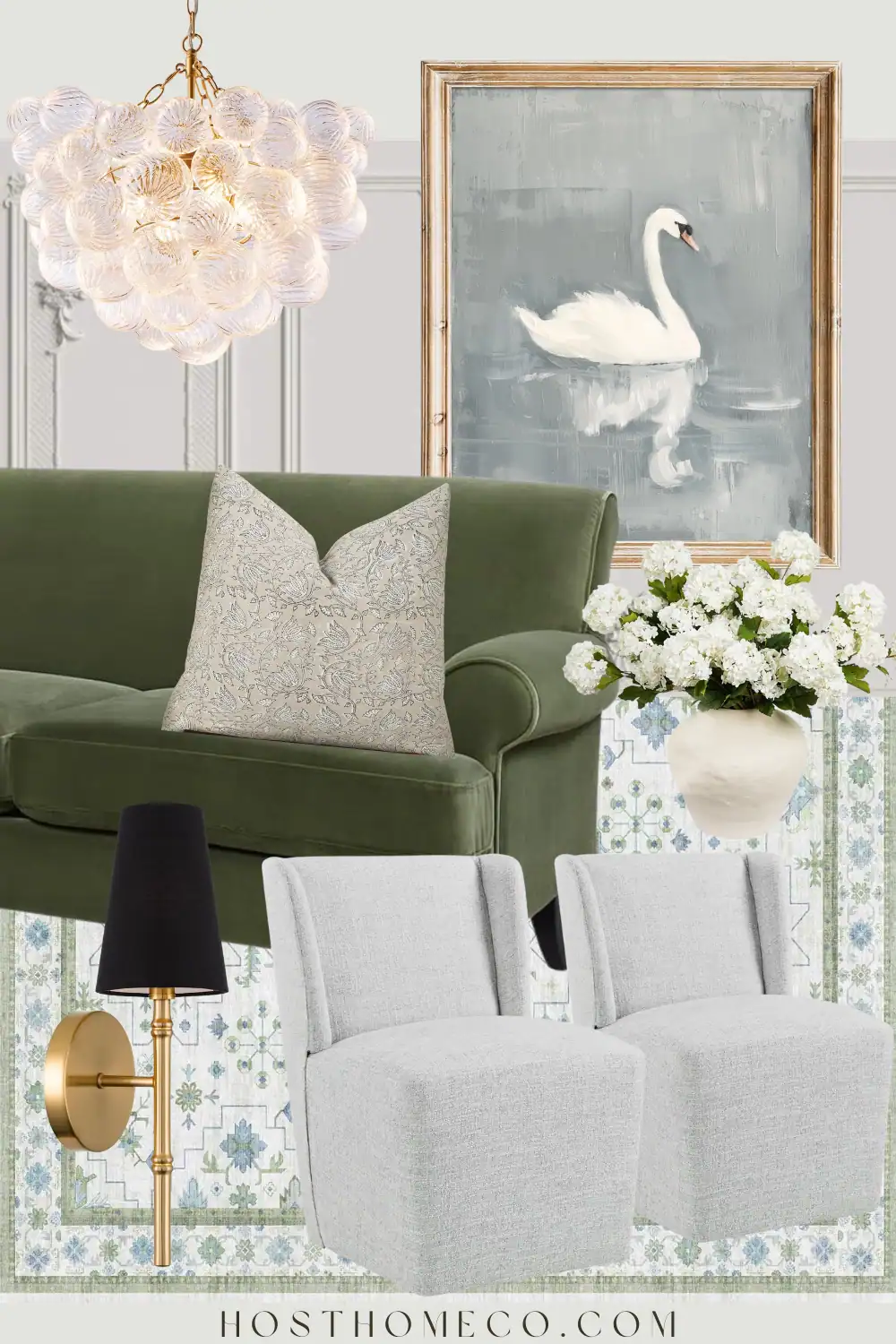
Suddenly, you’re not second-guessing your choices. You see what works and what doesn’t. Instead of Hmm, maybe that green sofa could work, you’ll know. Yes, this green sofa fits perfectly with my rug, my artwork, and the vibe I’m going for.
That confidence saves you time, money, and stress. No more buying things that don’t match, no more aimless scrolling, no more I’ll figure it out later… Your mood board becomes your blueprint.
Final Thoughts
At the end of the day, learning how to make a mood board is one of those life skills that pays off over and over again. Whether you’re decorating a home, planning a wedding, curating your personal style, or simply creating a vision for your future, a mood board is your visual cheat sheet.
Especially when Canva makes it ridiculously easy. You don’t need expensive software or a design degree. Just open Canva, drag in your images, and start playing. Before you know it, your ideas will come to life on the screen and you’ll have a roadmap to make them real.
Pick your theme, gather your inspiration, and make your next year’s mood board. You might be surprised how much clarity and fun comes from seeing your vision laid out clearly in front of you.
This post is all about how to make a mood board.